Tired of Managing UTMs in Excel Every Time? How to Manage UTMs Without Spreadsheets
Building one UTM link is easy. The pain starts when you build them over and over, in bulk, across a team, for many brands. You line values up in Excel, join them with CONCATENATE, hunt down the landing URL, copy-paste it, and keep a separate file per brand — until managing the files becomes its own job. This article covers why that repetition happens and how to manage UTMs without spreadsheets.
Do any of these sound familiar?
- Rebuilding UTMs in Excel every time is tedious. Each campaign means copying a sheet, re-wiring formulas, and one wrong cell breaks the link.
- Hunting for the landing URL is annoying. Open the product page, copy the address bar — and non-ASCII (Korean) URLs paste as ugly
%ED%95%98…. - A separate spreadsheet per brand/client, scattered everywhere. "BrandA UTM.xlsx", "ClientB_final_v3.xlsx"… which is current, and who changed it?
- Case and separator mistakes split your reports. google vs Google, underscores vs hyphens — GA4 treats them as different values and your analysis falls apart.
- Everyone builds them differently. Even with a shared doc, each person's hand differs and consistency breaks.
If any of these hit home, the problem isn't that you don't understand UTMs — it's that a human builds each one by hand every time.
Why Excel hits a wall
Excel is for tables, not for stamping out links consistently. As campaigns grow, the formulas get messy, files scatter, and versions tangle. For agencies and sellers juggling many brands or clients, keeping different source/medium rules in multiple spreadsheets multiplies mistakes and duplicates fast. It stops being a link problem and becomes operational friction.
How to manage UTMs without spreadsheets
Three ideas — templates for repetition, groups for organization, automation for input.
1) Save frequent setups as templates
Save "Google Search Ads", "Meta Ads", "Newsletter" as templates once; next time, click to load and just change the campaign name. Forced lowercase and standardized separators are baked in, so anyone produces the same format. No more re-wiring Excel formulas.
2) Split brands/clients into groups
Instead of one spreadsheet per brand, use groups (workspaces). Group 1 = your store, Group 2 = Client A, Group 3 = Brand B — each with its own templates and saved URLs, switchable with a tab and synced to the cloud across devices and browsers.
3) Keep landing URLs in a library, and auto-fill from the current tab
Save frequent landing URLs in a library and sort them into categories (folders) like Products, Events, Main. With the browser extension, click the icon on any product page to auto-fill the current tab's URL, and non-ASCII (Cafe24, Godomall, MakeShop) URLs are cleaned into tidy ASCII links — the "find and paste the URL" step disappears.
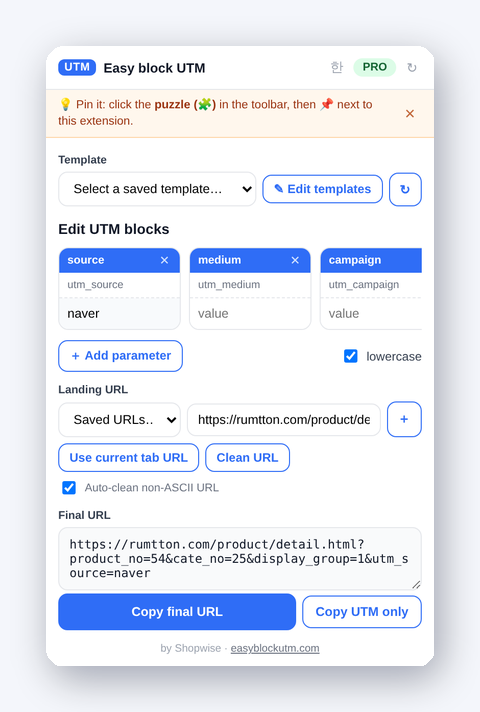
What about bulk work?
Sometimes you do need dozens of links at once. For that, upload a landing list via Excel/CSV to generate UTMs in bulk, and export the organized list back out. The point isn't to abandon Excel — it's to remove Excel from the repetitive work and keep it only for bulk jobs.
Summary — change what you manage
UTM management is hard not because links are hard, but because a person repeats the same task every time. Kill the repetition with templates, split brands with groups, and automate input with the extension — and you escape the pile of spreadsheets, version chaos, and casing mistakes. Easy block UTM lets you start all of this free with no signup; team/agency features like unlimited groups and cloud sync come with Pro.
See also → Build UTMs with drag and drop · Build UTMs from the current tab · Per-channel conventions · Pricing & Pro